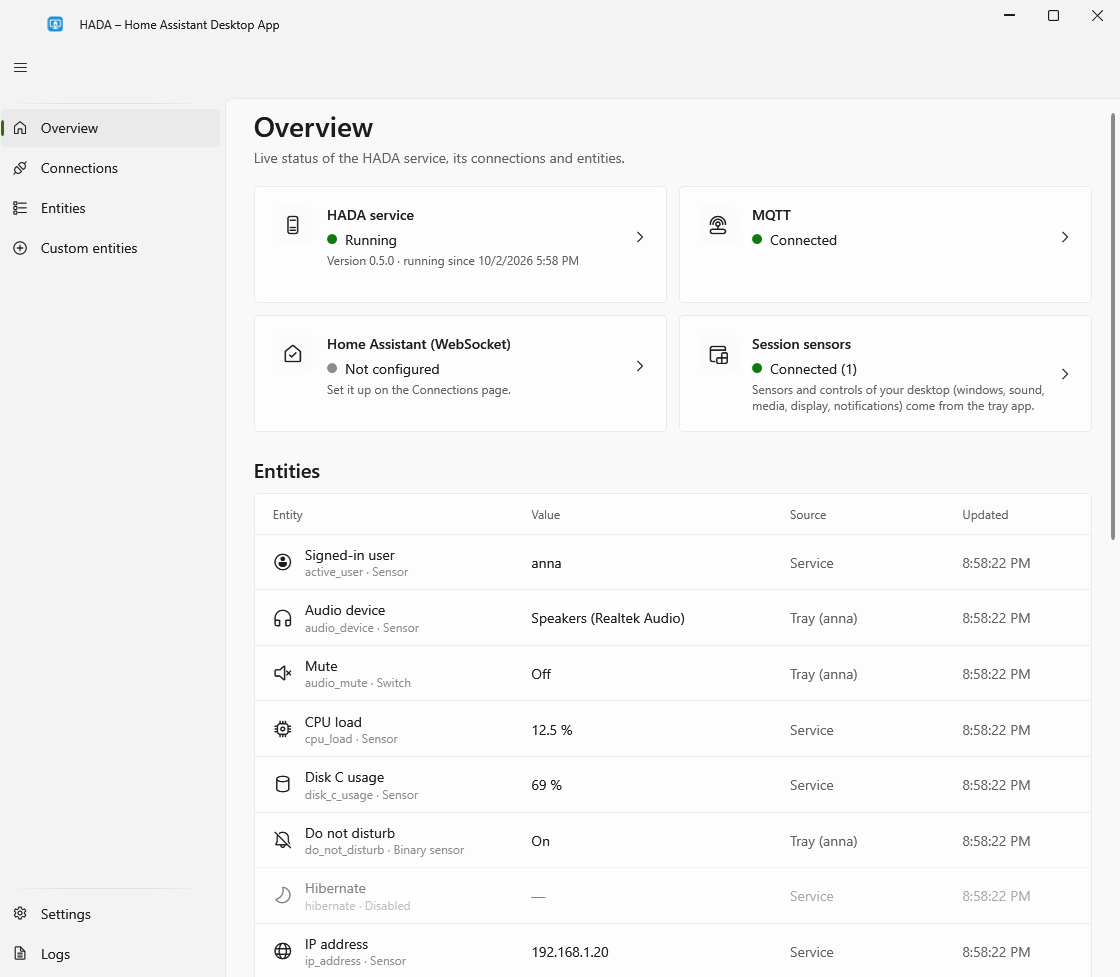
The HADA window
Open it by double-clicking the HADA tray icon, or choose Open HADA from its menu. Starting HADA.Tray.exe again while it is already running also brings the window up. The window follows the Windows light or dark theme, and shows Polish text when Windows' display language is Polish, English otherwise, unless you choose a language on the Settings page.
| Page | What it shows |
|---|---|
| Overview | Whether the service is running, the state of both connections and whether the tray is connected, a notice when a newer version is available, and every entity with its latest value. Each status card is a button: the service's opens Logs, the connections' open their settings on Connections, the tray's opens Entities |
| Connections | MQTT and Home Assistant settings, each with a Test connection button |
| Entities | A switch per entity to choose what is shared with Home Assistant and what Home Assistant may do. Disabled entities are removed from Home Assistant. The power buttons start switched off |
| Custom entities | Your own sensors (a fixed text, whether a program is running or a device is connected, the output of a PowerShell command) and buttons (run a PowerShell command, start a program) |
| Settings | Updates: the installed version, Check now, and whether to check by itself. And settings of your own, which need no administrator rights: Start with Windows, the language of the window (Polish, English, or as Windows), the address of the dashboard window, and how long without input until user_active turns off |
| Logs | Recent service log entries, filterable by level, with copy to clipboard |
Changing settings requires administrator rights. Anyone signed in can see status and logs, but the pages are read-only until you choose Unlock editing. That reopens the window as administrator (a UAC prompt). The service checks this itself, so a non-elevated client cannot save settings or run connection tests.
Saved settings take effect immediately: the affected connection restarts. Passwords and tokens are never shown again. Leave the field empty to keep the saved value, or tick Remove the saved value to clear it.
The tray icon's menu
Right-click the HADA icon in the notification area:
- your quick actions, if you defined any
- Open HADA, which a double-click on the icon does as well
- Home Assistant dashboard, if you set an address for it
- Exit, which stops the tray app and with it the session sensors and controls; the service keeps running
The dashboard window
New in 1.1.0.
Enter an address on the Settings page, under Home Assistant dashboard, for example http://homeassistant.local:8123/lovelace/desk. The tray icon's menu then offers Home Assistant dashboard: a small window near the notification area showing that address.
It is a browser of its own, built on the Microsoft Edge WebView2 Runtime that Windows 11 includes and Windows 10 usually has. You sign in to Home Assistant in it once; the sign-in is kept in your user profile, under %LocalAppData%\HADA\dashboard. Like the HADA window it is a separate process that exists only while it is open.
Memory use
Measured on Windows 11 ARM64 (private memory):
| Process | Memory |
|---|---|
| Service | about 15 MB |
| Tray app | 20 to 25 MB |
| Settings window, while it is open | about 125 MB |
The window draws with the CPU instead of the graphics card. On some graphics drivers, setting up hardware rendering alone takes more than 200 MB, and these pages have nothing that needs it.