HADA – Home Assistant Desktop App
HADA connects a Windows computer to Home Assistant. It runs in the background, tells Home Assistant what the computer is doing, and lets Home Assistant control it.
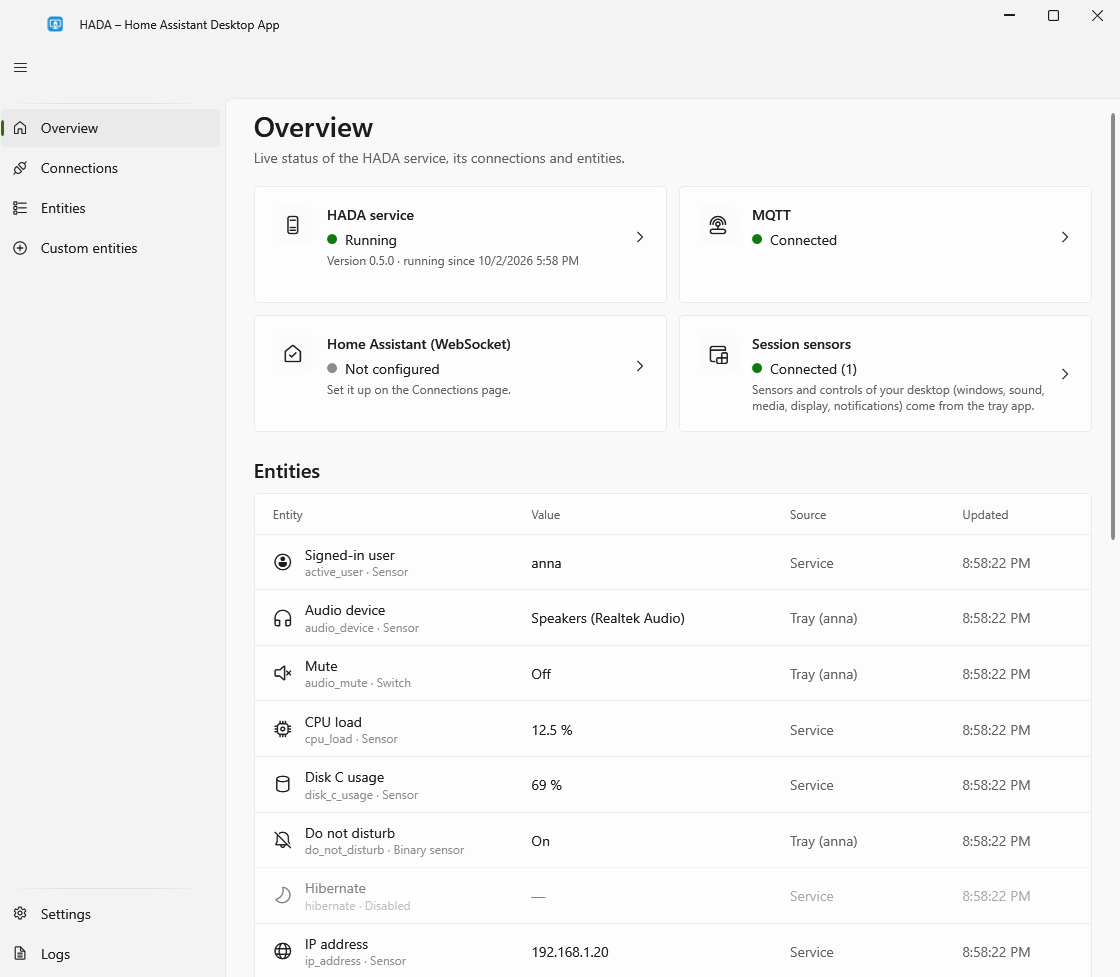
What it does
- Reports the computer's state. Whether the screen is on, the session locked, somebody at the keyboard; what is playing; whether the microphone or camera is in use; battery, network, disks and more. See Sensors.
- Takes commands. Volume and mute, media keys, the display, lock, sleep and shut down. See Controls.
- Shows notifications sent from Home Assistant. See Notifications.
- Lets you add your own sensors and buttons without writing code: whether a program runs, whether a dock is connected, the output of a PowerShell command, a button that starts a program or presses keys. See Custom sensors and buttons.
- Starts automations from the computer. Quick actions in the tray icon's menu, each with a keyboard shortcut if you like, and buttons on notifications. See Quick actions.
- Shows your dashboard in a small window opened from the tray icon. See The dashboard window.
How it is built
- A Windows service and a small tray app. The service keeps the connection to Home Assistant and works with nobody signed in. The tray app adds what only a signed-in user's desktop can tell.
- Light. About 15 MB for the service and 20 to 25 MB for the tray app. The window is a separate process that only exists while it is open.
- MQTT discovery. The computer shows up in Home Assistant as a device with all its entities; nothing to write in YAML. It can report to several Home Assistants at once. A direct WebSocket connection works too, with limits.
- Yours to control. Every entity has a switch. The buttons that switch the computer off stay off until you turn them on. Settings can only be changed by an administrator.
- x64 and ARM64, Windows 10 (1809 or newer) and Windows 11. Polish and English.
Start here
- Install HADA, or unpack the portable version
- Connect it to Home Assistant
- Use the entities in automations
HADA is free and open source, under the MIT license. Stable versions keep their settings and MQTT topics from one version to the next; versions marked as pre-release carry new features that have been tried less.